How to Set Up Your Chair and Desk for Long Gaming or Work Sessions
A ten-minute, five-point check for seat height, lumbar support, arms, monitor position and movement – based on Australian workstation guidance.

The 5-point check
- Thighs slightly angled downwards
- Lumbar support fitting the curve of your lower back
- Forearms slightly angled down to the keyboard
- Top of the screen at eye level, about an arm’s length away
- Change posture regularly
A good chair only helps if it is set up for you. These steps take about ten minutes and work whether you are gaming, studying or working from home. They follow the workstation guidance published by Comcare, the Australian Government work health and safety regulator.
1. Start with seat height
Sit all the way back in the chair and adjust the height so your thighs are slightly angled downwards. Your feet should rest comfortably – if they do not reach the floor once the chair suits your desk, a footrest helps.
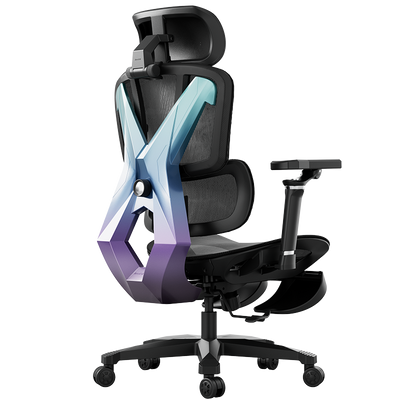
Gaming chair tip: a pull-out leg rest is for reclined breaks, not for typing. Fold it away when you sit upright to work.
2. Fit the lumbar support
Adjust the lumbar support so it fills the natural curve of your lower back. On a mesh ergonomic chair this is usually a height or depth adjustment; on many gaming chairs it is a built-in mechanism or a lumbar cushion you can move up and down. You should feel supported, not pushed forward.
3. Set your arms and keyboard
Bring the keyboard close and let your forearms angle slightly downwards to it. Lower or raise the armrests so they support your arms without lifting your shoulders. Keep the mouse close to the keyboard and within easy reach, so you are not stretching sideways for hours.
4. Position your monitor
Place the screen centred directly in front of you, at a comfortable reading distance of about an arm’s length. Set the height so the top of the screen sits at eye level and your head stays neutral, with your chin roughly parallel to the ground.
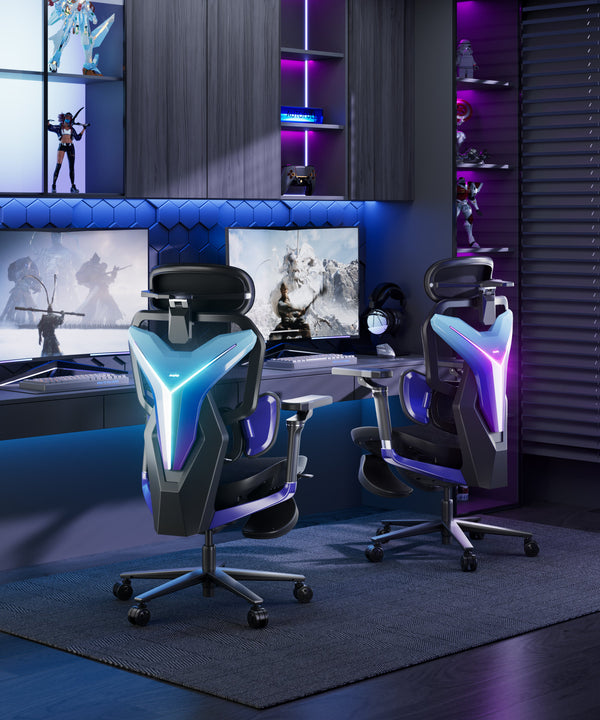
Using two monitors? Put the one you use most directly in front of you and angle the second beside it.
5. Keep moving
No position is perfect for eight hours. Take regular breaks to stretch and vary your posture. If you have a sit-stand desk, Comcare’s guidance is not to stand all day and to alternate between sitting and standing roughly every 30 minutes. Our standing desk guide covers how to set this up.
Quick fixes for common problems
| If you notice… | Try this |
|---|---|
| Leaning forward to see the screen | Move the monitor closer or check its height |
| Shoulders creeping up | Lower the armrests or raise the chair slightly |
| A gap behind your lower back | Raise or deepen the lumbar support |
| Reaching sideways for the mouse | Bring it next to the keyboard |
This guide is general information, not medical advice. If you have ongoing pain or discomfort, speak with a health professional. Source: Comcare, Setting up your workstation factsheet.